All articles
How to use search terms to better answer users' questions
Use Site Search in Google Analytics to help make your documentation better.
Published
Category
How to use search terms to better answer users' questions
bri hillmer | October 18, 2016
How good is your search? Does it help your users find what they are looking for?
In a previous post, I raved about the usefulness of using Google Analytics in your software documentation. In this post, I will expand on how awesomely useful setting up Site Search in Google Analytics[1] can be.
Reviewing Search Terms
Once it is set up Site Search provides you with the terms and phrases users are searching. As the data aggregates over time start by noticing the trends in your data.
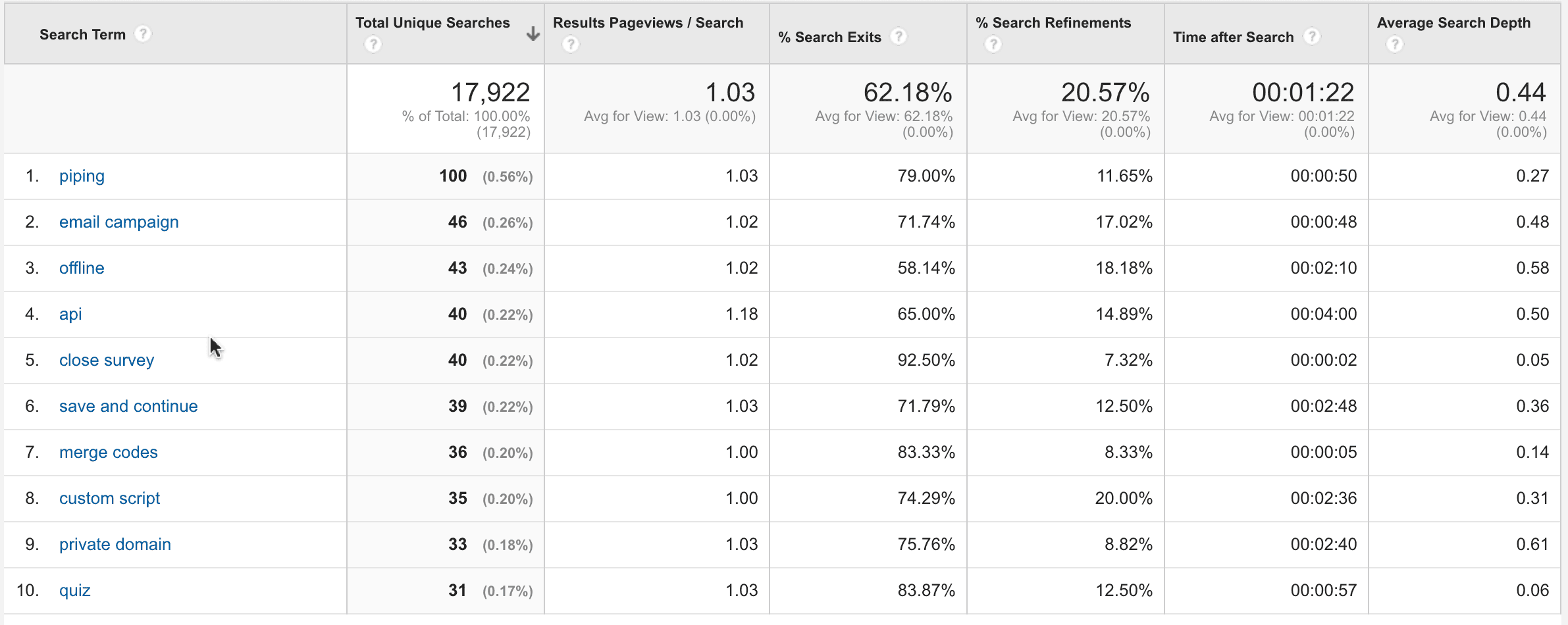
Each search term will include several metrics that you can use to evaluate how the search is performing.
For each search term the following metrics are reported:
Results Pageviews/Search - The average number of times users viewed a search results page after performing a search.
%Search Exits - The percentage of searches after which the user simply left your site after searching instead of clicking any of the results pages.
%Search Refinements - The percentage of searches that resulted in another search.
Time after Search - The length of time visitors spent in your documentation after getting results from a search term.
Average Search Depth - The average number of pages users viewed after running a search.
How To Measure Success
Results Pageviews/Search, %Search Exits, %Search Refinements, and Average Search Depth are all ideally low.
Results Pageviews/Search is ideally 1; If it is higher than 1, this means that people have to dig to find relevant results.
Higher Search Exit percentages mean that your users are not finding what they need in your search results. In the below screenshot of my Google Analytics, this metric looks terrible. This is because our community (where most users search) has a different domain than our knowledge base so, in my case, a higher percentage isn't necessarily a bad thing.
If %Search Refinements is high, users are having trouble finding what they're looking for.
An Average Search Depth higher than 2 often means people don’t find what they want from the first search.
When it comes to Time after Search, the higher it is the better. Time after Search is ideally long enough to assume that the user consumed the content and got the answer they were looking for.
Making Improvements Based on Search Terms
While the aggregate metrics are great for getting an overall sense of how your search is doing zooming into individual search terms is where the real gold is.
The most frequent searches will be listed first. These will often reflect the names of features within your software. These searches are probably performed by users that know your software pretty well.
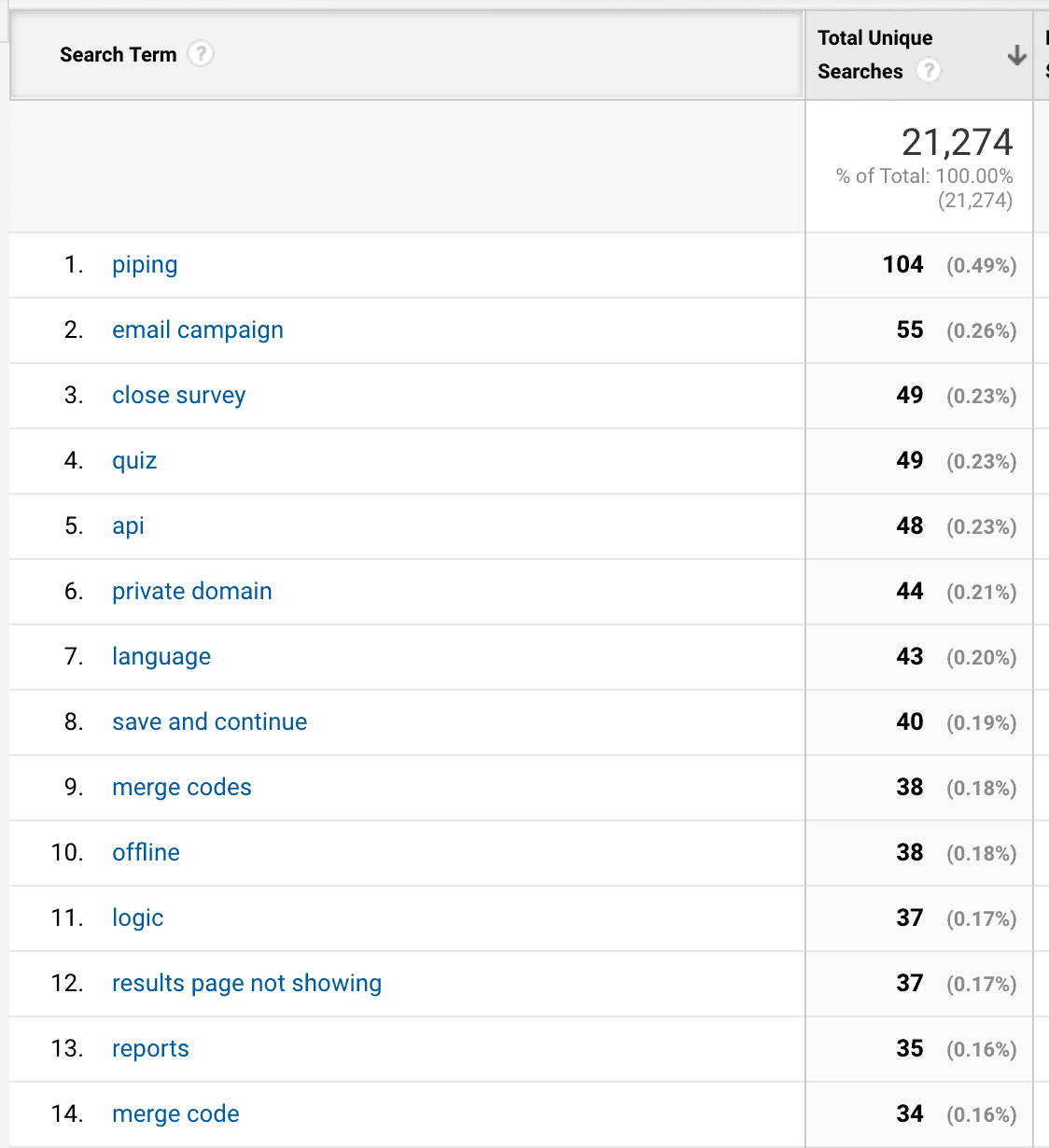
The less frequent searches will give you visibility into how your users think and what they are trying to do.
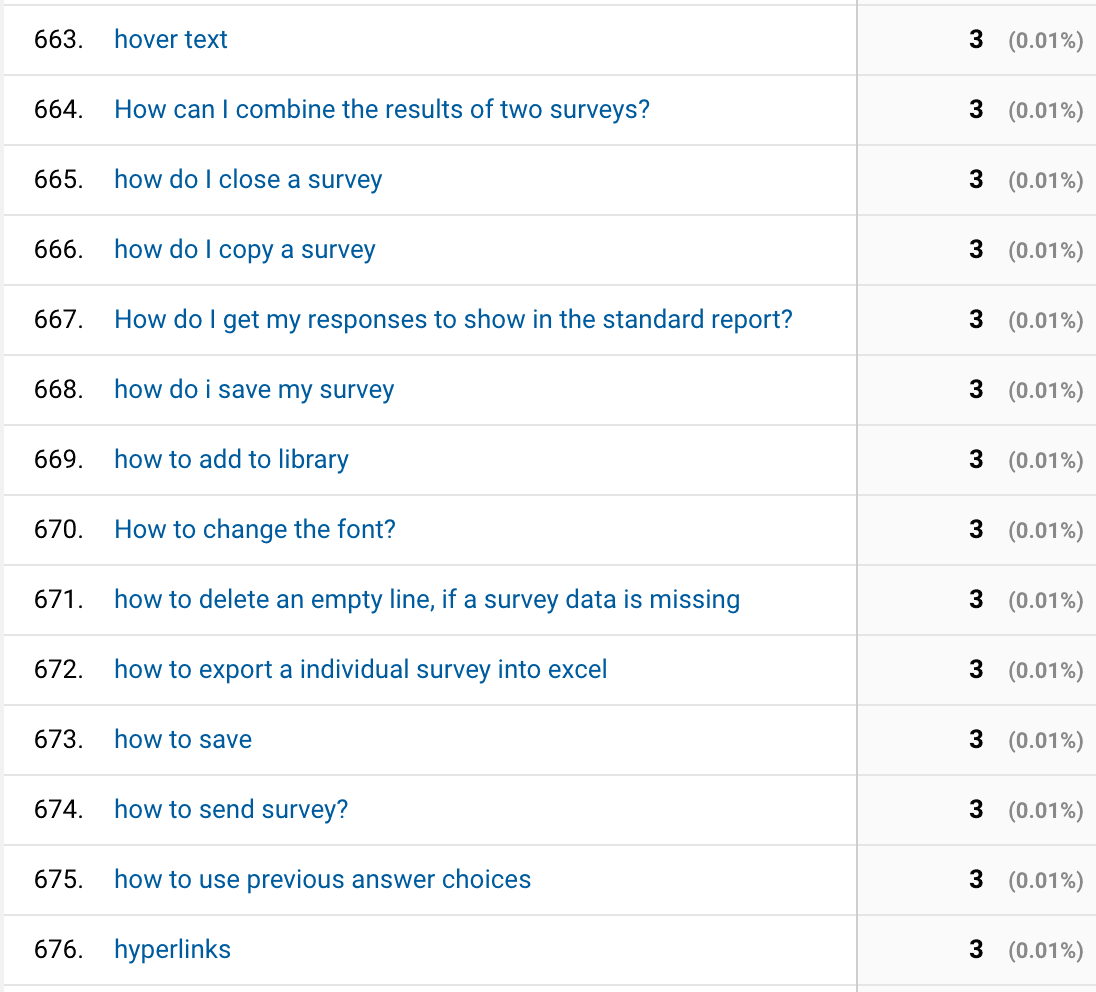
It's a great idea to perform these searches yourself to ensure that the results include the articles you want to return. Examining search results at this level of detail can lead to a number of improvements.
Adding Synonyms
Search terms often help you to better understand how your users' language differs from the language used in your software and documentation. Synonyms, a common search customization, allows you to take the terms that users use and match it up with the terms use in your documentation.
Re-Titling Articles
While synonyms are handy, you might still find that you need to re-title an article in order to get users to click on it in the search results. Keep an eye on the search term metrics to see if the addition of the synonym is working. If not, consider re-titling the article to use language that is more natural for your users.
New Documentation
Reviewing search terms often leads to writing new documentation. Users' search terms often highlight functionality that is difficult to find.
For example here are some articles that I have written based on search terms:
Create and Validate a Phone Number Question
Create and Validate a Zip Code Question
Top Box or Top 2 (or 3) Box Reporting
Create a Fill-in-the-Blank Question
Documentation Driven Development
Finally, search terms can lead to improvements in the software itself.
While the documentation can help customers find features and functionality that are hard to find, if it is persistent, it's probably best to consider making a change to the software.
For example, "close survey" and other variations of what customers search when trying to figure out how to close a survey have long been a popular search term in our documentation.
When we redesigned the home page recently, I asked the development team make this easier to find!
{{snippet.BriHillmer}}
{{snippet.Disqus}}

Written by
Bri Hillmer
Bri is a Senior Staff Technical Writer at Splunk. An Ohioan at heart, Bri now lives in Colorado where she spends her time reading, hiking, and spending time with her dogs.
Find her on LinkedIn.

Follow these 3 steps to improve your knowledge base
1
Get expert tips every month in your inbox
No spam, pinky promise.


2
Try the knowledge base software your team will fall in love with
Reduce tickets, make information easy to find.
Happier employees, happier customers.
3
Become the tech writer everyone respects
Check out our podcast, The Not-Boring Tech Writer.

How teams are using KnowledgeOwl
Loved by 3,200+ knowledge base authors in software companies around the world